
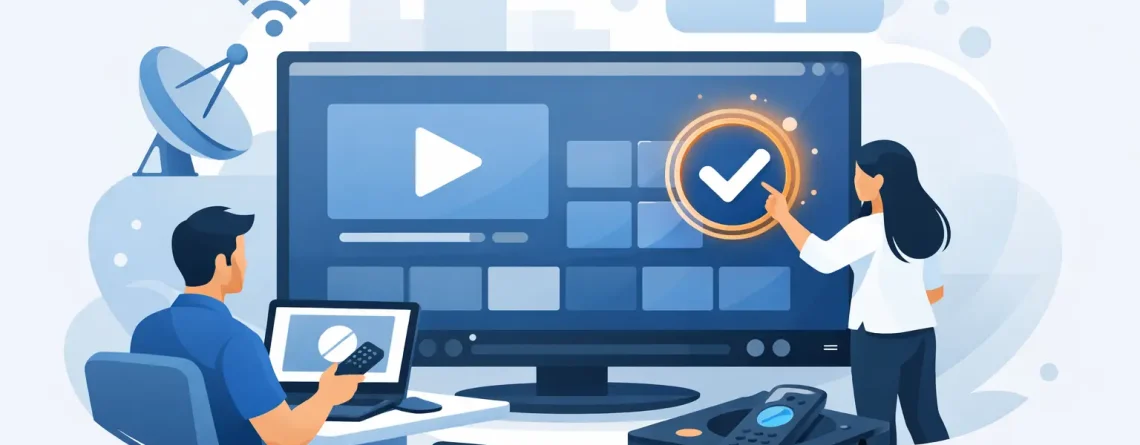
How to Activate IPTV Subscription Fast
You bought the plan, checked your inbox, and now you want the stream live in minutes – not after an hour of guessing through apps and login screens. If you are wondering how to activate IPTV subscription access the right way, the process is usually quick, but the exact steps depend on the device, the app, and the login type you received.
The good news is that activation is usually simple when you follow the setup in the right order. Most problems happen for basic reasons – the wrong app, a typo in the username, an expired trial, or entering an M3U link where a portal URL is required. Get those details right, and you can go from purchase to watching live TV, sports, movies, and international channels in just a few minutes.
How to activate IPTV subscription step by step
Start with the email you received after purchase. That message normally contains everything you need: either an M3U playlist URL, Xtream Codes login details, or a portal URL with MAC-based activation instructions. Before opening any app, confirm which format you were sent. This matters because IPTV apps are not all built the same.
If your provider sends Xtream Codes, you will usually receive a server URL, username, and password. This is the fastest setup method on many popular IPTV players because you enter the credentials once and the app loads channels, categories, and video-on-demand content automatically.
If you received an M3U URL, you will paste that link into an IPTV player that supports playlist imports. This method works well, but it can be a little less user-friendly on some devices because long URLs are easy to mistype.
If your service uses a portal URL and MAC address, the setup is often tied to apps or devices that emulate set-top box behavior. In that case, you usually need to send the MAC address shown in the app to support, then wait for activation on the server side.
Once you know your login type, install a compatible IPTV player on your device. Then open the app, choose the correct login option, enter the credentials exactly as provided, and save. In most cases, the app will start loading channels right away. If it does not, close and reopen the app once before changing settings.
Pick the right app before you activate
This is where many users lose time. The subscription does not always fail – the app is just not compatible with the format provided.
For Smart TVs, Android TV boxes, Firestick, smartphones, and tablets, many IPTV players support Xtream Codes and M3U playlists. If your provider gave you Xtream details, use the Xtream login section inside the app, not the M3U section. If you were given an M3U link, use playlist import. That sounds obvious, but it is one of the most common setup mistakes.
On MAG-style setups or portal-based apps, you may need to register the MAC address first. Until that is done, the app can open normally but still show no channels. That is not always a broken subscription. It may simply be waiting for activation on the provider side.
The fastest route is usually the one that matches the credentials exactly. Do not force one format into another field just because the app allows it.
Device setup by platform
Smart TV
On a Smart TV, download a supported IPTV player from the app store. Open the app and choose your login type. Enter the Xtream Codes details or paste the M3U URL carefully. Smart TV remotes are slow for typing, so double-check every character, especially slashes, dots, and capital letters if the app treats them as case-sensitive.
If the app asks for a playlist name, label it something easy to recognize. After saving, give the TV a moment to load channels and categories. A strong internet connection helps here because the first sync can take longer than later launches.
Firestick
Firestick is popular because it is affordable, fast, and simple for streaming. After installing an IPTV player, open it and select Add Playlist or Login with Xtream Codes. Enter your details and save. If the app freezes on first load, restart the Firestick and relaunch the app.
If buffering shows up right away, the issue is not always activation. It can be Wi-Fi strength, background apps, or a VPN setting that does not play well with the stream source. Activation and playback are related, but they are not the same thing.
Android phone or tablet
Mobile setup is usually the easiest. Install the player, choose the login method, paste the credentials, and connect. Phones make long URL entry easier, so M3U users often have the smoothest experience here. Once loaded, check both live channels and on-demand content so you know the full account is working.
iPhone or iPad
The process is similar on iOS, but app availability can vary more than on Android. Choose a supported IPTV player, then enter Xtream Codes or the M3U playlist. If the app rejects the login, confirm the format first. Some apps support one method better than the other.
Laptop or desktop
On a computer, activation is often simple because copying and pasting credentials is easier. Install a compatible player or use the login method recommended by your provider. Paste the server URL, username, and password exactly. Then test a few channels from different categories.
What you need before activation
A few basics make the process much faster. You need your subscription email, a stable internet connection, a compatible app, and the correct device. It also helps to know whether your plan allows multiple connections at the same time.
That last part matters more than people think. If your plan supports one connection and the account is already streaming on another screen, your new device may not load properly. Users sometimes assume the subscription is inactive when the real issue is connection limits. If your household streams on several screens, choose a plan that matches how you actually watch.
Common activation problems and how to fix them
The most common issue is incorrect login entry. One missing character can stop the whole setup. Re-enter the username, password, and server URL slowly. Avoid extra spaces before or after pasted text.
The second issue is app mismatch. If your provider sent Xtream Codes, do not use the M3U section unless they specifically confirm both formats are active on your account.
The third issue is delayed account readiness. Some subscriptions activate almost instantly, while others take a short processing window, especially during busy periods. If you just paid, give it a few minutes and refresh your email before assuming something is wrong.
The fourth issue is expired service. Trials, short-term plans, and monthly packages all have different timelines. If the app suddenly stops loading after working before, check the plan status first.
Finally, there is the network side. Slow internet, DNS problems, or overloaded Wi-Fi can make a live stream fail even when the subscription is fully active. That is why it helps to test on a second device. If the same login works on your phone but not your TV, the account is probably active and the issue is local to the device or app.
How to know your IPTV subscription is fully active
A successful login is only part of activation. You want to confirm the account is fully loaded and stable. Open a live sports channel, a local channel, and one movie or series category if your plan includes video on demand. If those sections load and play, your setup is in good shape.
Also check the electronic program guide if your app supports it. Some users think activation failed because guide data is missing, but channel playback still works. Guide loading can lag behind the initial login depending on the app and source.
If you are using a service built for fast delivery and broad device support, activation should feel quick, not complicated. That is exactly why many users choose providers like Crypto PAY IPTV – the goal is simple setup, instant access, and streaming that starts without the cable-company nonsense.
Best practices after setup
Once the account is working, save your login details somewhere secure. If you reset the app or switch devices later, you will not need to search old emails. It is also smart to keep one reliable IPTV player on each main device instead of constantly testing new ones.
If you share access across the household, make sure everyone understands the connection limit on the plan. More screens are great, but only if the subscription supports them. Pushing beyond the allowed connections can create login conflicts that look like activation errors.
And if support is available 24/7, use it when needed. Fast support matters most when the issue is on the account side, not the device side. A quick message with your order details, app name, and screenshot of the error can save a lot of trial and error.
Getting started with IPTV should not feel technical or slow. Use the right app, match the exact login format, and test your channels right away. Once it is active, the real benefit shows up fast – more content, more screens, and a much lower bill than old-school cable.


Leave a Reply