
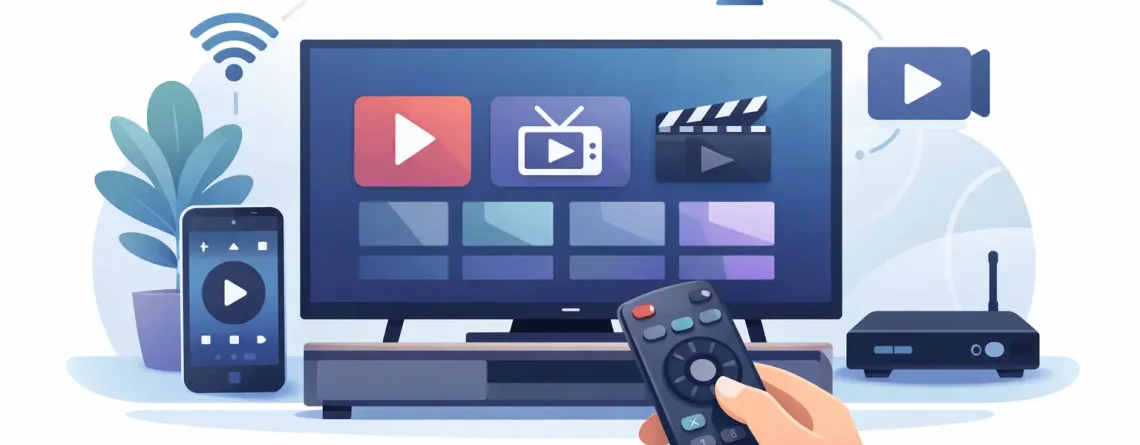
Smart TV IPTV Setup Guide: Start Streaming Fast
A smart TV should not make watching live channels feel like a technical project. With the right player app, stable internet, and valid subscription details, you can go from a blank screen to live sports, movies, local channels, and international programming in minutes. This smart TV IPTV setup guide keeps the process simple, fast, and focused on what actually matters: getting your streams running clearly on the biggest screen in the house.
What You Need Before You Start
Get three things ready before opening your TV’s app store: a reliable internet connection, a compatible IPTV player app, and the login details supplied by your IPTV provider. Those details may arrive as an M3U playlist URL, Xtream Codes credentials, or a portal URL. Do not guess or type them from memory. A single incorrect character can stop the playlist from loading.
For the best HD experience, use a wired Ethernet connection if your TV is close to the router. Wi-Fi can work very well, especially on a newer smart TV, but crowded networks and weak signals can cause buffering during major games or busy prime-time hours. If Ethernet is not practical, use the 5 GHz Wi-Fi band and keep the TV within solid range of your router.
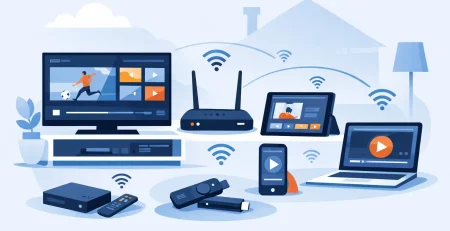
You also need a current smart TV system. Most IPTV player apps work through the app stores available on Samsung Smart TVs, LG webOS TVs, Android TV or Google TV models, Amazon Fire TV devices, Roku devices, and Apple TV. App availability changes by region and device model, so the exact player you choose may differ.
Smart TV IPTV Setup Guide: Choose Your Player App
Your IPTV subscription provides channel access. A player app is the screen where you organize, browse, and watch those channels. Many player apps do not include content themselves, which is why they ask you to add a playlist or account credentials.
Search your TV’s official app store for a reputable IPTV player that supports the format your provider sent. If you received an M3U URL, select an app that supports M3U playlists. If you received a username, password, and server address, choose an app with Xtream Codes support. If your provider gave you a portal address and MAC activation instructions, use an app designed for portal-based service.
Do not install random files from unknown sources just because a video says it is the “best” app. Official app stores are the easiest path for most households, and they make updates simpler. On Android-based devices, sideloading can be useful when an app is unavailable in the store, but it adds steps and requires more care. For a living-room TV, the simplest compatible app is usually the better choice.
M3U Playlist Setup
Open the player and look for an option such as Add Playlist, Add User, or Load M3U. Give the playlist a recognizable name, such as Living Room TV, then paste the full M3U URL exactly as provided. Avoid adding spaces before or after the address.
Save the entry and wait for the player to download the channel list. A large lineup with live channels, video on demand, and international categories can take a little longer than a basic playlist. Once it finishes, you should see categories, channel groups, and a search function.
Xtream Codes Setup
Xtream Codes setup is often the fastest option because it organizes the service automatically. Choose Login with Xtream Codes or API Login, then enter the server URL, username, and password from your subscription email. Some apps ask for a profile name too. Use any name that helps you recognize the device later.
Check the server URL carefully. It should include the correct protocol, usually http or https, only if your provider supplied it that way. Do not add extra slashes or modify the address. Save the account, allow the app to refresh, and start browsing.
Portal or MAC Address Setup
Portal setup is common with certain TV apps and dedicated IPTV boxes. The player may display a MAC address that needs to be registered with your provider before channels appear. Send or enter that address only through your provider’s official support process, then add the portal URL in the player.
This method can work smoothly, but it is less portable than an M3U URL or Xtream Codes login. If you switch devices, you may need a new activation. That is not necessarily a problem – it just depends on how your household uses its screens.
Set Up Your TV for Better Streaming
A working stream is good. A stream that starts quickly, stays sharp, and is easy to find is better. Once your account loads, take two minutes to adjust the app instead of settling for a cluttered channel list.
Start by adding favorite channels. Put your most-watched sports networks, local stations, movie channels, kids programming, and international channels in one place. This saves time when everyone is waiting for the game to begin.
Next, check the electronic program guide, often called EPG. If guide data does not appear immediately, give the app time to sync or use its refresh option. A complete guide makes an IPTV service feel much closer to the familiar cable experience, with current shows and upcoming schedules displayed beside each channel.
If your player offers stream format choices, leave the default setting in place unless you have a reason to change it. Some devices handle one format better than another, but switching formats blindly can create playback problems. Test a few live channels first, then adjust only if your provider’s support team recommends it.
Crypto PAY IPTV customers should also keep their account details available in a secure place, especially when setting up multiple screens. That makes it easy to add a compatible TV, phone, tablet, or streaming device without searching through old emails every time.
How to Stop Buffering and Loading Errors
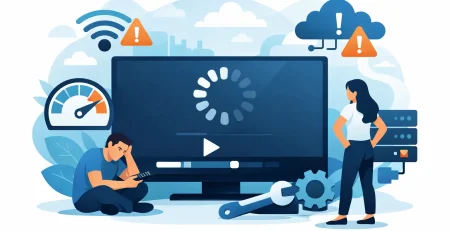
Buffering is usually a network or device issue, not a reason to immediately replace your subscription. Start with the easiest checks. Restart the TV, restart the router, then reopen the IPTV player. This clears temporary connection problems more often than people expect.
If buffering continues, test another channel category. One channel may have a temporary issue while the rest of the lineup is fine. Then test your internet connection on another device. If every app in the home is slow, your network is the likely problem.
Move closer to the router, switch from Wi-Fi to Ethernet, or disconnect unused devices that are downloading large files. A household streaming 4K movies, gaming online, backing up phones, and watching live TV all at once may need more bandwidth or better router placement. The right answer depends on your home and how many screens are active.
For login errors, copy and paste credentials when possible. Check whether your subscription is active, verify that the server URL matches your original message, and make sure you have not exceeded your allowed simultaneous connections. If an app suddenly stops loading after an update, refresh the playlist or remove and re-add the account before changing anything else.
Using IPTV on More Than One Screen
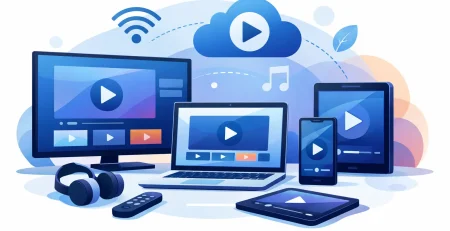
One of the biggest advantages over expensive cable bundles is flexibility. A family may want live news in the kitchen, sports in the living room, a movie on a tablet, and international programming in a bedroom. Your actual number of simultaneous streams depends on the plan you purchased, so confirm that limit before adding every device in the house.
Give each device a clear profile name during setup. Names like Main TV, Bedroom TV, and Travel Tablet make troubleshooting faster. They also help you spot the correct device if you need to refresh credentials or remove an old screen later.
Avoid sharing your account details casually. Besides creating connection conflicts, it makes it harder to manage your own household’s viewing access. Keep credentials private and use only authorized devices under your plan.
A Quick Check Before Movie Night
Before the big match, a family movie, or a weekend binge, open the app a few minutes early. Confirm that your favorites load, the program guide is current, and your network is stable. Small checks beat troubleshooting when the event has already started.
Use a legitimate subscription and watch content you are authorized to access. Then keep the setup simple: choose a compatible player, enter the correct details, build your favorites, and let your smart TV do what it was bought to do – deliver more entertainment for less hassle.


Leave a Reply