
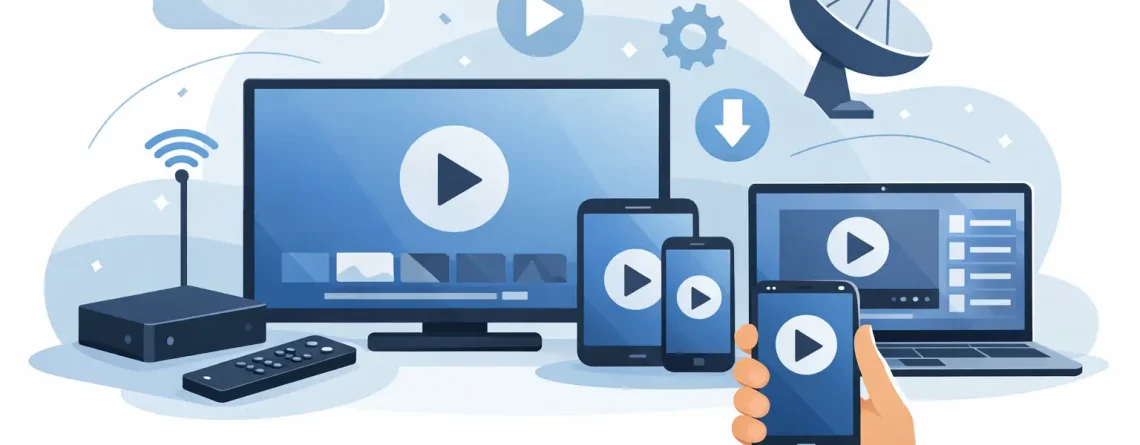
How to Set Up IPTV on Any Device Fast
Cable bills hit different when you realize you are paying more and still scrolling for something worth watching. If you are wondering how to set up IPTV without wasting an hour in confusing menus, the good news is this is usually much faster than people expect. In most cases, you pick a plan, get your login details, install an app, and start streaming in minutes.
That speed is the whole appeal. People want live TV, sports, movies, and international channels without contracts, hardware appointments, or bloated monthly bills. IPTV gives you that flexibility, but the setup can look a little different depending on the device you use and the type of login your provider sends.
How to set up IPTV without the usual confusion
The first thing to know is that IPTV is not one single app. It is a way of delivering TV over the internet, and you usually watch it through a player app on your device. Your provider supplies the service and sends the access details. The app is simply the tool that loads your channels, guide, and on-demand content.
Most providers send one of three things. You might receive an M3U playlist URL, Xtream Codes login details, or a portal URL for a specific player. That matters because the app you choose must support the format you were given. If you try to force the wrong setup into the wrong app, you will think the service is broken when it is really just a mismatch.
Before you start, make sure you have four basics ready: a stable internet connection, the device you want to stream on, your IPTV credentials, and an installed player app that matches those credentials. A lot of setup issues come down to skipping one of those pieces.
Pick the right app before you enter anything
This is where people either save time or lose it. Some apps are built for smart TVs, some work especially well on Firestick and Android boxes, and others are better on phones or tablets. If your provider recommends a specific player, that is usually the fastest route.
In general, smart TV users want an app with a clean live TV guide and easy remote navigation. Firestick users need something lightweight and quick to install. Mobile users care more about touch-friendly controls and reliable playback over Wi-Fi or cellular data. Laptop and desktop users may prefer a player with straightforward playlist support and minimal setup screens.
It also helps to know whether your app needs a one-time activation fee. Some players are free with limitations, while others charge for premium features. That is not automatically a bad thing. A paid player can be worth it if it is more stable and easier to use every day.
How to set up IPTV on a smart TV
Smart TVs are one of the most popular IPTV devices because the experience feels closest to regular television. You sit down, open the app, and start watching. If your TV runs Android TV or Google TV, installation is usually simple because the app selection is wider.
Start by opening your TV’s app store and searching for a compatible IPTV player. Install it, launch it, and choose the login method that matches what your provider sent. If you received Xtream Codes details, enter the server URL, username, and password exactly as provided. If you got an M3U URL, paste that into the playlist field.
Once the app loads your service, give it a minute to import channels and the electronic program guide. On some TVs, the first sync takes longer than expected, especially if the channel lineup is large. That does not always mean something is wrong. It may simply be loading a lot of data.
If the app feels slow on an older TV, that is a hardware issue more than a service issue. A dedicated streaming device can sometimes perform better than the TV itself.
How to set up IPTV on Firestick and Android devices
Firestick is popular for one reason: it is fast, affordable, and easy to turn into a full streaming hub. Android phones, tablets, and TV boxes are just as flexible, and setup is usually straightforward.
Install your IPTV player from the app store if it is available there. If not, some users install apps manually, but that route depends on the device, the app source, and your own comfort level. If you want the simplest experience, stick with widely supported apps that are easy to find and update.
After installing the player, open it and choose your login type. Enter your M3U link or Xtream Codes details carefully. One wrong character can stop the app from connecting. Uppercase letters, lowercase letters, slashes, and extra spaces all matter.
Once logged in, adjust a few settings before you settle in. Change the stream format if your app offers multiple options, enable hardware decoding if playback feels choppy, and make sure the time zone is correct so the channel guide lines up with your local schedule. These are small changes, but they clean up the experience fast.
How to set up IPTV on iPhone, iPad, and other mobile devices
Mobile setup is perfect if you want to test the service first or watch on the go. The process is similar to TV and Firestick setup, but the experience depends more on screen size and internet quality.
Download a compatible IPTV player from the App Store or Google Play. Open the app, select the correct login method, and add your credentials. If the app offers playlist names, label it clearly so you can identify it later if you add multiple services.
Mobile users should pay close attention to data use. IPTV can consume a lot of bandwidth, especially in HD. If you stream mostly away from home, lower the video quality when needed. That trade-off can prevent buffering and save mobile data without ruining the viewing experience.
Phones are great for convenience, but they are not always ideal for channel surfing or long sports sessions. If your household watches regularly, a TV-based setup usually feels better.
What to do if IPTV is not working after setup
Most setup issues are fixable in a few minutes. The first thing to check is your credentials. Re-enter the username, password, server URL, or playlist link exactly as provided. Typing errors are the number one culprit.
If the login is correct but channels will not load, restart the app and your device. Then test your internet speed and try switching from Wi-Fi to Ethernet if your device supports it. IPTV is highly dependent on connection quality. Even a strong-looking Wi-Fi signal can be unstable if the network is congested.
If live TV works but the guide is empty, refresh the EPG or wait a few minutes for it to load. If buffering shows up on every channel, the issue may be your network, the app settings, or temporary server load. If it happens only on a few channels, that usually points to the source feed rather than your whole setup.
This is also where good support matters. A provider with fast activation and 24/7 help saves you from guessing. That is one reason many users prefer streamlined services like Crypto PAY IPTV, where the process is built around quick delivery and fast start times.
How to get better performance after you set it up
Getting IPTV running is one thing. Getting it to run well every night is another. A few simple adjustments make a real difference.
Use the fastest internet connection available, and whenever possible, wire your main TV device directly to your router. Ethernet is usually more stable than Wi-Fi. If wiring is not realistic, place your streaming device close to the router or use a strong mesh network.
Keep your app updated. Older versions can cause login problems, missing features, or playback bugs. It also helps to clear the app cache occasionally, especially on Firestick and Android devices where apps can slow down over time.
Finally, be realistic about the device. A low-cost streaming stick from years ago may not handle a heavy channel guide as smoothly as a newer box. If performance matters, better hardware often beats endless troubleshooting.
The fastest way to get started
If you want the smoothest path, do not overcomplicate it. Choose your device first, install a player that matches your provider’s login format, enter the credentials exactly, and let the app load fully before changing settings. That is the core of how to set up IPTV the right way.
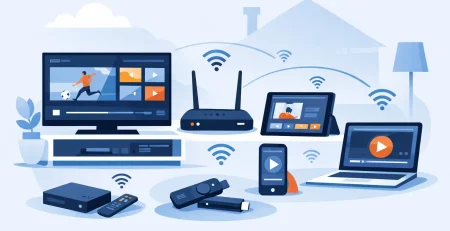
The rest comes down to fit. Some households want one screen and simple live TV. Others want multiple connections across TVs, tablets, and phones. Some care most about sports, while others want local channels and international content. The best setup is the one that matches how you actually watch.
A good IPTV experience should feel easy from day one. Not technical. Not slow. Not overpriced. Just fast access, solid quality, and the freedom to watch what you want without the cable headache. Get the setup right once, and every stream after that gets a whole lot better.

Leave a Reply